Last verified: September 6, 2026
By Zubair Ahmed — independent AI coding-tool researcher with 20+ years of IT industry experience.
“Agent Encountered an Error While Running” in Replit means the current Agent task failed, but the message alone does not identify whether the cause is Replit, the workspace, or your app. Stop retrying, preserve the current state, check Replit Status, test Preview without Agent, and roll back only after you understand what the selected checkpoint will restore.
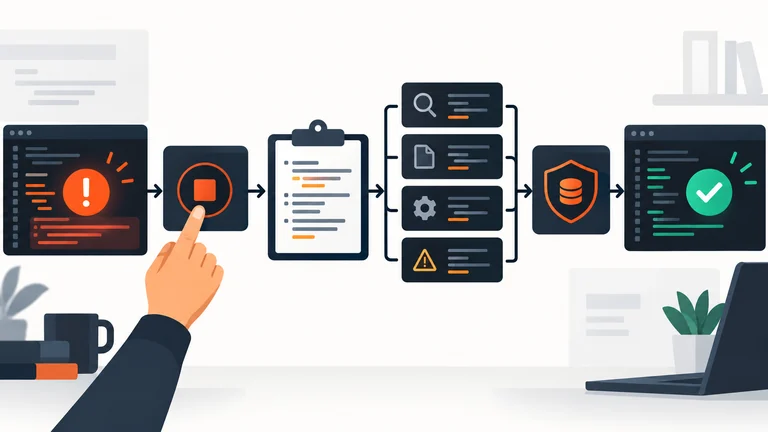
What does “Agent Encountered an Error While Running” mean in Replit?
The message means an Agent run did not complete successfully. It is a generic task-level symptom, not a diagnosis of your code. The failure can sit in Replit’s Agent service, a single browser or workspace session, the project runtime, a dependency or secret, or the publishing environment.
That distinction matters because the remedies conflict. A Replit-side incident calls for waiting. A browser problem calls for a clean session. A broken app calls for evidence from Preview or logs. A bad code change may call for a checkpoint rollback. Treating every case as a coding bug encourages unnecessary edits.
Recent reports in the Replit community show the same message appearing after different behaviors: an Agent task freezes, errors before editing, or keeps revising a project without reaching a stable result. These reports establish that users encounter the symptom; they do not prove one universal cause. Replit’s own status history has separately recorded elevated Agent errors, tasks failing to start, and stuck Repls or Agents.
One community report traced the error to a request that tried to write a list of more than 250 countries into one new file; splitting the work into smaller batches resolved that user’s case. Treat this as a useful diagnostic example, not a universal size limit. The same error can also appear when Agent’s editing sandbox cannot reach an external service, because Replit documents restricted outbound access during build and edit work.
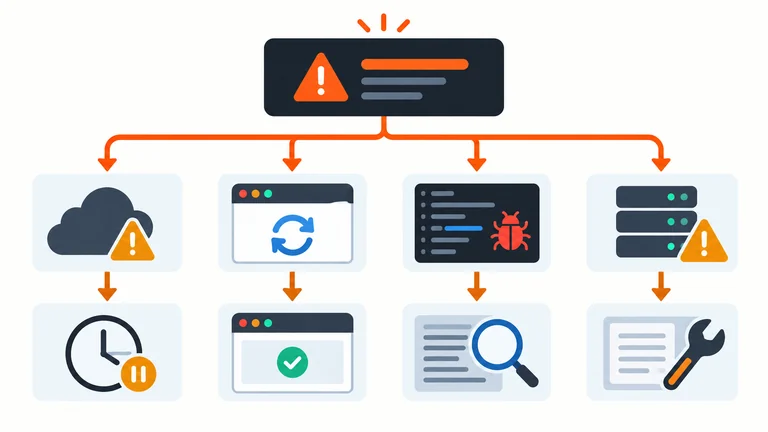
Which Replit failure do you actually have?
Separate the Agent, workspace, Preview runtime, and published app before making changes. One quick isolation test often prevents a needless rollback: if the app still works in Preview while Agent fails, preserve the code and troubleshoot the Agent session or platform first.
| What you observe | Likely failure area | Safest first action | Do not do yet |
|---|---|---|---|
| Agent errors immediately in multiple projects | Platform, account, model, or quota | Check Replit Status and usage | Edit application code |
| Agent fails, but Run and Preview work | Agent task or conversation | Preserve the project; start a focused fresh thread after checking status | Rollback working code |
| Agent panel is frozen only in one browser | Browser session or extension | Open a private window or another supported browser | Delete project files |
| Preview fails with a stack trace | Application runtime, dependency, configuration, or secret | Copy the first actionable error and reproduce it manually | Ask Agent to “fix everything” |
| Preview works, but publishing fails | Build, start command, production secret, port, or deployment configuration | Read Publishing logs | Rewrite working application logic |
| The app broke immediately after Agent edits | Bad or incomplete change | Review the diff and last known-good checkpoint | Apply more speculative edits |
| Files, Shell, Console, and Agent are unavailable in one project | Project-specific workspace or compute failure | Document it and escalate if a clean browser does not help | Run unverified “reset” commands from forum posts |
How can you tell whether Replit is down?
Check the official status page before touching code, then compare more than one project if you have access to another harmless test project. A matching Agent incident or the same immediate failure across projects points away from your application. Replit’s status history is useful evidence because it records Agent-specific incidents separately from publishing, login, and database incidents.
A green status page does not prove your project is healthy. It only means Replit is not reporting a broad active incident at that moment. Continue with the workspace and Preview checks if the problem is isolated.
How can you tell whether your app is broken?
Select Run and open Preview without asking Agent to modify anything. Use the main user flow that worked before the failed task. If Preview loads and the critical flow still works, take that as a checkpoint: the application does not need an emergency code repair merely because Agent failed.
If Preview fails, capture the exact stack trace, request URL, HTTP status, and the first error that appears—not only the final cascade of errors. Replit’s publishing guide also starts with Preview: a broken Preview should be repaired before publishing because a deployment cannot compensate for a failing application.
How do you stop the Replit Agent error loop safely?
Stop the loop by freezing further changes, recording the state, and proving which layer failed. The goal is not to make the error disappear at any cost; it is to return to a known state while keeping recoverable code and data intact.
-
Stop sending repair prompts
Select Stop in the Agent panel. If Agent is frozen, disconnecting, or repeating steps, open the command palette with Cmd+K on Mac or Ctrl+K on Windows, search for Restart compute, and select it. Replit’s current Agent help page then recommends opening a new chat and restating one smaller task. Do not send repeated variations of “try again,” because each attempt can add edits or billable work without improving the evidence.
-
Capture a recovery record
Save the exact error, UTC time, original prompt, last successful action, visible work log, changed files, checkpoint name, and Preview result. Redact secrets, private source code, emails, database rows, and billing details before sharing screenshots.
-
Check platform status and account usage
Open the official status page in a separate tab. Also inspect the usage dashboard and any plan or budget warning. Replit says usage details can take up to 30 minutes to appear, so absence of a new line item immediately after failure is not final proof that no usage was recorded.
-
Test the browser and workspace without changing code
Reload once. If the Agent panel remains unresponsive, try a private window or a second supported browser with extensions disabled. If only one browser fails, fix that session. If only one project fails while another opens normally, preserve the failing project and continue project-specific diagnosis.
-
Test Preview and inspect the evidence
Run the app manually. If Preview fails, copy the earliest useful error from Console or relevant logs. Check whether the failure names a missing environment variable, unavailable dependency, wrong entry point, failed migration, port mismatch, or network request.
-
Compare the last known-good checkpoint
Open Agent History and review the checkpoint description and Changes view. Replit says Agent checkpoints correspond to Git commits and can include files, configuration, Agent context, and database state. Identify the last checkpoint you personally verified—not merely the last one labeled successful.
-
Choose wait, fix forward, or rollback
Wait when an active Replit incident matches the failure. Fix forward only when the app still runs and the defect is narrow, reproducible, and supported by a clear error. Roll back when a recent Agent change broke known behavior, touched unrelated files, or left the project in a worse state.
How do you roll back a Replit checkpoint without losing data?
Review the checkpoint scope and database option before confirming. Replit says a checkpoint rollback restores project files, Agent conversation context, project configuration, and the development environment; the development database changes only if you explicitly select the Database option.
- Open History in the Agent panel.
- Find the last checkpoint where you personally tested the important flow.
- Open Changes and inspect the files and configuration that differ.
- Select Rollback here.
- Read the confirmation dialog. Decide separately whether the development database should return to its earlier state.
- Confirm only after you accept that changes after the selected checkpoint will be removed from the active state.
- Run Preview and repeat the exact smoke test that previously worked.
This boundary is why the widely reported case in which Replit Agent deleted production database data matters to ordinary troubleshooting: code recovery and production-data recovery are not the same job. If a production database may have changed, stop writing to it, preserve evidence, and use the database provider’s documented recovery path rather than assuming an Agent checkpoint covers it.
That separation also belongs in any decision about whether Replit is safe enough for your production workload. The useful question is not “Is the platform safe?” in the abstract; it is whether your app has environment separation, backups, limited credentials, deployment gates, and a tested restoration procedure.
How should you retry the failed Replit Agent task?
Retry only after the project is stable, and give Agent one bounded diagnostic task with evidence, constraints, and a test. Replit’s context guidance says relevant context matters more than dumping unrelated material into the conversation, and it recommends a fresh thread when a long conversation has accumulated abandoned directions.
Use this diagnostic-only prompt first
Do not edit files, install packages, change Secrets, run migrations,
or publish the app.

Diagnose this single failure:
[paste the exact error]

Reproduction steps:
1. [action]
2. [action]
3. [observed result]

Last known-good checkpoint: [name and time]
Expected result: [one sentence]

Return only:
1. the most likely cause,
2. the evidence supporting it,
3. the smallest proposed file changes,
4. the exact test that would prove the fix.
Wait for my approval before changing anything.
If the diagnosis is coherent, switch to Plan Mode where available and approve a small plan. Replit documents Plan Mode as read-only for code and Build Mode as the mode that writes files. This boundary lets you reject a risky approach before another implementation starts.
Use this constrained fix prompt after approval
Implement only the approved fix for [specific error].

Allowed files:
- [path/to/file]
- [path/to/test]

Do not change:
- database schema or data
- Secrets or environment variables
- authentication or authorization
- deployment configuration
- unrelated UI or dependencies

Run this verification after the edit:
[exact command or user-flow test]

If the test fails, stop. Report the error and changed files.
Do not attempt a second repair strategy without approval.
A good retry has a stop condition. “If the test fails, stop” prevents a simple repair from becoming an open-ended refactor. The same discipline helps outside Replit when Cursor becomes slow during a large or noisy session or when GitHub Copilot stops responding as expected: isolate tool state from code state before rewriting the project.
What if Preview, publishing, or the entire Replit workspace is broken?
Use the component that still works to identify the component that does not. Preview failure needs runtime evidence; publishing failure needs deployment evidence; a fully inaccessible project needs preservation and escalation rather than improvised destructive commands.
If Preview is broken
Read the Console and runtime output. Confirm the configured start command, entry point, dependency installation, expected port, and required environment-variable names. Do not paste secret values into Agent chat; Replit’s Secrets tool exposes them to the app as environment variables specifically to avoid hard-coding credentials.
When the error mentions a missing secret, verify only that the required key exists and is available in the intended environment. Do not rotate a working production credential as a generic debugging step. Credential scope and agent permissions are core AI coding-agent security risks, especially when a tool can edit code, run commands, or reach external services.
If Preview works but publishing fails
Open the Publishing pane and inspect its Logs. Replit’s official guide says to look for stack traces, missing packages, failed commands, missing environment variables, and startup errors, then verify the build and run commands. Keep the working Preview code unchanged until the logs show that application logic is the cause.
If the whole project workspace is unresponsive
Try a clean browser session and record whether another project opens. If the file tree, Shell, Console, Preview, and Agent are all unavailable in only one project, you cannot safely diagnose the code from inside that workspace. Avoid undocumented container-reset commands copied from community posts unless Replit Support directs you to use one for your exact project and explains its effect.
Broader product changes can also affect behavior. For example, platform integrations and product consolidation such as the Windsurf–Devin merger can change workflows over time, but they should not be used as a speculative explanation for a specific Replit error without direct evidence.
When should you contact Replit Support?
Escalate when safe local checks cannot restore access, billing appears wrong, production data may be affected, or rollback itself fails. A useful support request includes identifiers and timestamps but excludes passwords, API keys, access tokens, raw customer data, and unnecessary private code.
- The error occurs immediately across repeated clean sessions after the status page shows no matching incident.
- One project cannot open its file tree, Shell, Console, Preview, or Agent.
- A checkpoint is missing, rollback fails, or the restored state does not match the chosen checkpoint.
- The usage dashboard shows a charge you dispute. Wait for the documented reporting delay before concluding a line item is missing or duplicated.
- Production data or schema may have been changed.
- The failure blocks a team or a live customer workflow.
Copy this support checklist
Issue: Agent Encountered an Error While Running
Project URL or ID: [private support field]
Time observed (with time zone): [date and time]
Agent task/thread: [identifier if visible]
Original prompt: [redacted]
Last known-good checkpoint: [name and time]
Preview result: [works / fails + exact error]
Publishing result: [not tested / works / fails + log excerpt]
Other projects affected: [yes/no]
Browsers tested: [names]
Status-page incident at that time: [URL or none]
Rollback attempted: [no / yes + result]
Usage entry: [amount/status, no billing details attached]
Attachments: [redacted screenshots and logs]
How do you prevent another Replit Agent error loop?
Make each Agent task small, reversible, and independently testable. Replit recommends specific requests, reviewable plans, relevant context, hands-on testing, and checkpoints; those habits reduce the amount of uncertain state carried into the next task.
- Define one outcome. Do not combine authentication, database migration, redesign, and deployment in one request.
- Name non-goals. State which files, data, configuration, and user flows must remain unchanged.
- Use Plan Mode for risky changes. Review the proposed scope before files change.
- Test after each checkpoint. A checkpoint is useful only when you know whether its state works.
- Keep Git history outside the Agent conversation. Replit recommends manual Git commits alongside automatic checkpoints for long-term tracking.
- Separate development and production. Use different databases and least-privilege credentials, and require a manual gate for migrations.
- Set usage alerts and a budget limit. Replit provides both in Account → Billing.
- Start a fresh thread when context drifts. Carry forward a short state brief, not the entire history of failed approaches.
- Stop after the first repeated failure. A second identical failure is new evidence, not an invitation to keep prompting.
What is the safest recovery decision?
If Agent fails but Preview works, protect the working app and repair the Agent session later. If the app broke after a known change, inspect and roll back to a verified checkpoint. If Replit reports an incident, wait. If production data may be involved, stop all writes and escalate through the documented recovery path.
The best outcome is not an Agent message that says “fixed.” It is a reproducible test that passes, a reviewed diff, a checkpoint you have verified, and a recovery path that does not depend on the same failing Agent session.
Frequently asked questions
Should I keep clicking retry when Replit Agent encounters an error?
No. Try once only if there is no sign that files changed. After a repeat failure, stop, check Replit Status, test Preview, and inspect the task’s work log and checkpoint before starting another paid or code-changing run.
Does the error mean my Replit app is corrupted?
No. The message says the Agent task failed; it does not prove the app is damaged. Run the app in Preview and test the main flow. A working Preview is evidence that you should preserve the current code rather than roll it back reflexively.
Will a Replit checkpoint rollback also restore my database?
Not by default. Replit says you must select Database under the additional rollback options to restore the development database. That choice can remove later data or schema changes, so review the impact before confirming.
Does Replit rollback restore a production database?
No. Replit’s checkpoint documentation says production-database restoration is not performed automatically by the rollback feature. Use the separate, documented production recovery process and contact support when data integrity is uncertain.
Can a failed Replit Agent run still use credits?
It can generate usage depending on the mode and work performed, but the generic error message alone does not establish what was billed. Check the usage dashboard and checkpoint cost information. Replit says dashboard data can take up to 30 minutes to appear.
Should I run “kill 1” to fix a frozen Replit workspace?
Do not use it as the default first step. Older community and support replies mention that Shell command, but Replit’s current public help page directs users to select Stop and choose Restart compute from the command palette. Follow the current documented interface flow unless Replit Support gives different instructions for your project.
When should I start a new Agent thread?
Start a fresh thread when the conversation contains abandoned approaches, unrelated work, or old constraints that Agent keeps applying. Include a short project-state summary, the exact error, the allowed scope, and a definition of done.
What should I send Replit Support?
Send the project identifier, exact timestamp and time zone, task or thread identifier, redacted prompt, last known-good checkpoint, Preview result, relevant logs, browsers tested, and whether other projects fail. Never send passwords, API keys, or customer data.

Research methodology and sources
This is an evidence-led troubleshooting guide, not a hands-on reproduction of the error. It was researched on September 6, 2026 using current Replit documentation, Replit’s incident history, and recent community reports. Community reports were used to identify symptoms and user language, not to establish a universal cause.